Dashboard
Purpose
The Dashboard is the first screen you see after logging in. It gives you a live summary of the cooperative's financial health and recent activity — all in one place. Think of it as the control centre for your cooperative.
Who Can Access
All logged-in users. The information shown depends on your role — Administrators and Managers see full financial summaries, while other staff may see only their relevant sections.
How to Open This Page
- Automatically shown after login.
- Click the QoopOne logo or Home / Dashboard in the sidebar at any time.
💡 Key Actions on the Dashboard
- Watch the Top Row: Check Total Members, Total Savings, and Total Loans for an instant health check of your cooperative.
- Check Pending Approvals: Scroll to the bottom regularly to see registrations and loans waiting for your approval.
Screen Overview
The dashboard is divided into several panels:
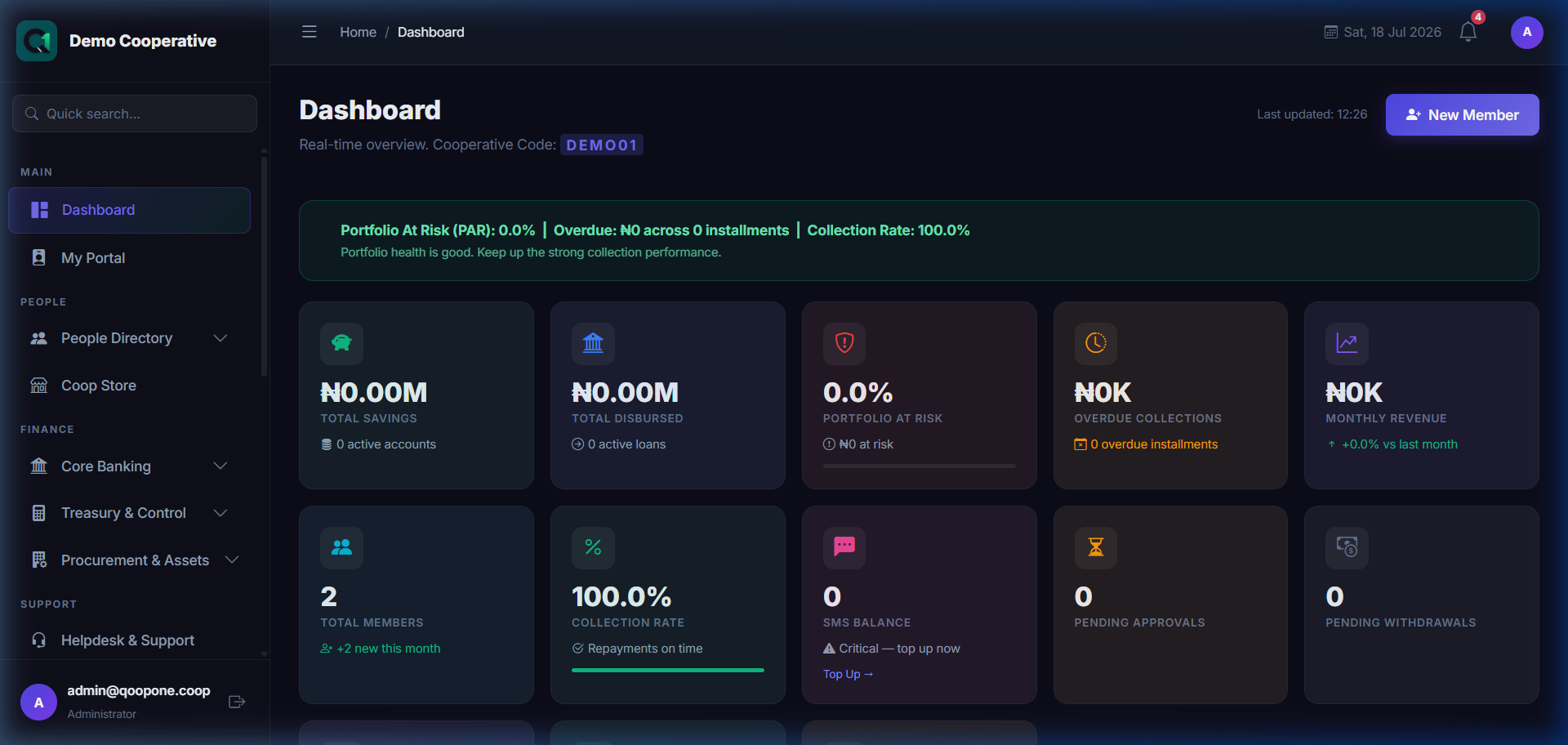
Dashboard Panels
1. Summary Cards (Top Row)
Quick statistics for the cooperative at a glance:
| Card | What It Shows |
|---|---|
| Total Members | Number of registered members (Active, Pending, etc.) |
| Total Savings | Sum of all savings balances across all accounts |
| Total Loans | Total outstanding loan portfolio |
| Total Share Capital | Total share capital subscribed by all members |
| Dividends Paid | Total dividends declared/paid in the current period |
| Revenue | Cooperative income for the current financial period |
2. Recent Members
A list of the most recently registered or pending members, with their membership status. Click any member to open their full profile.
3. Recent Transactions
A feed of the latest financial transactions (deposits, withdrawals, loan repayments). Shows transaction type, amount, and date.
4. Loan Summary Chart
A visual chart showing the loan portfolio breakdown — active loans, overdue loans, and fully repaid loans.
5. Savings Summary Chart
A chart showing the distribution of savings across product types (Regular, Target, Fixed Deposit).
6. Pending Approvals
A quick-access list of items waiting for your approval — e.g. member registrations, loan applications, withdrawal requests.
Tips
Quick Navigation
Each dashboard card is clickable. Click any summary card to jump directly to the relevant module (e.g. clicking Total Members takes you to the Members list).
Data is Live
Dashboard figures update in real time as transactions are posted. Refresh the page to see the latest numbers.
Common Mistakes
| Issue | Solution |
|---|---|
| Numbers look wrong | Refresh the page. Check if the correct financial period is selected in Settings. |
| Pending approvals not showing | You may not have the required role. Ask your administrator. |
Frequently Asked Questions
Q: Can I customise what I see on the dashboard?
A: The dashboard layout is role-based. Contact your administrator to adjust your role permissions.
Q: Why is a number showing as zero?
A: If no transactions have been recorded yet, the balance will show as zero. This is normal for a new cooperative.