Loan Applications
Purpose
The Loans module allows staff to submit, track, and manage loan applications for cooperative members and external customers. Once a loan is submitted, it goes through an approval workflow before funds are disbursed. After disbursement, you can track repayments, view schedules, and monitor overdue accounts.
Who Can Access
| Role | Access Level |
|---|---|
| Administrator | Full access |
| Loan Officer | Can submit, view, and process applications |
| Committee Member | Can approve or reject loans |
| Account Officer | Can view loan status |
| Auditor | View-only |
| Member | Can view their own loan status on the portal |
How to Open This Page
Sidebar → Loans
Loans List
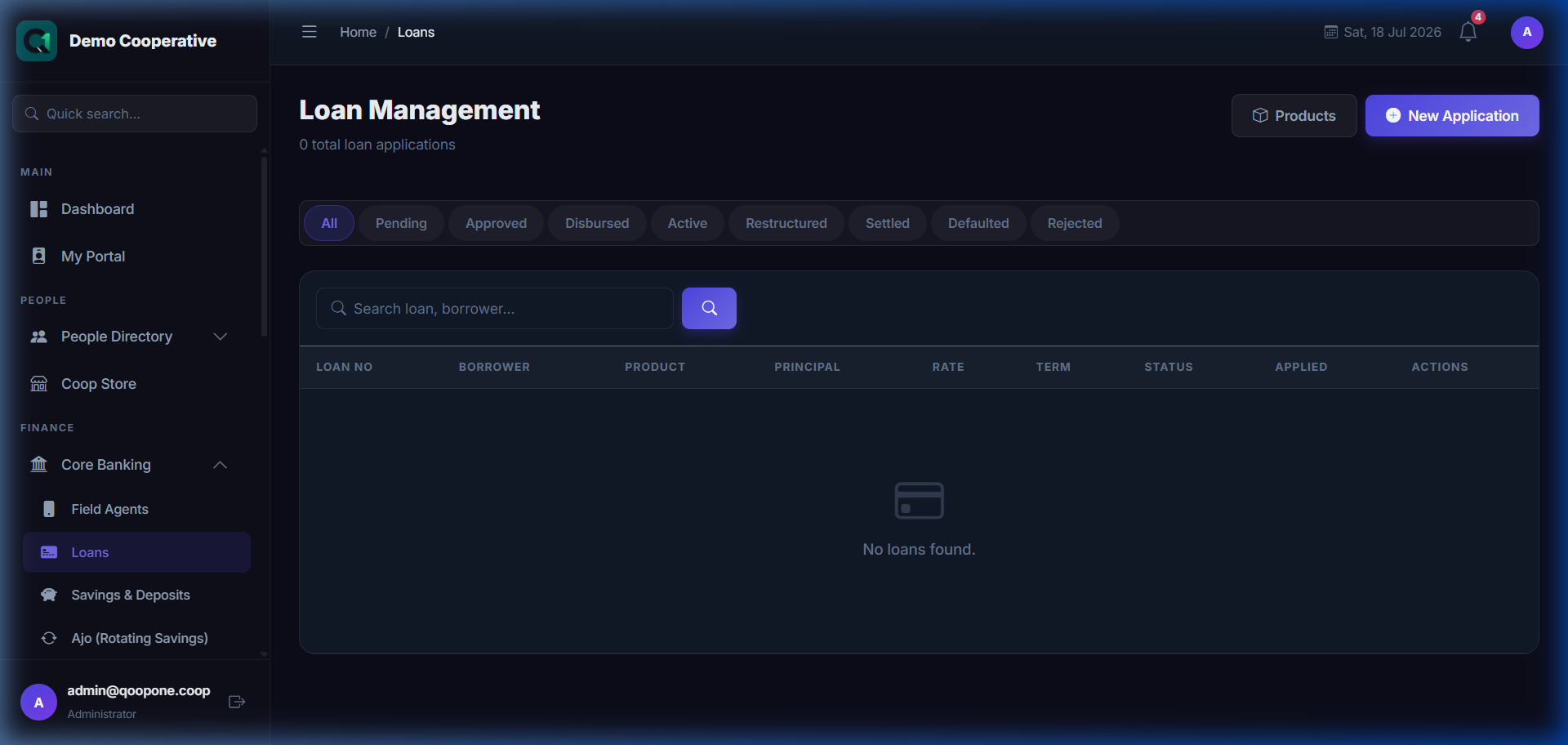
👉 HOW TO PROCESS A LOAN APPLICATION (Vivid Guide)
- Step 1: Go to the left menu and click Core Banking -> Loans.
- Step 2: Click the blue button at the top right: "New Application".
- Step 3: Select if they are a Member or Customer and select their name.
- Step 4: Choose the correct Loan Product, enter the Loan Amount, and the Repayment Term in Months.
- Step 5: Click the green "Submit Application" button to submit.
The loans list shows all loan accounts in the system.
Filters
| Filter | Description |
|---|---|
| Search | Search by member name, loan number, or member ID |
| Status | Pending, Active, Overdue, Closed, Rejected |
Table Columns
| Column | Description |
|---|---|
| Loan No | Unique loan reference number |
| Borrower | Member or customer name |
| Product | Loan product type (e.g. Emergency Loan, Business Loan) |
| Principal | Original loan amount |
| Outstanding | Remaining balance to be repaid |
| Monthly EMI | Monthly instalment amount |
| Status | Current loan status |
| Start Date | Date the loan was disbursed |
| Actions | 👁 View details |
New Loan Application
Sidebar → Loans → New Application
Section 1: Borrower Details
| Field | Required | Description | Example |
|---|---|---|---|
| Borrower Type | Yes | Choose whether the borrower is a cooperative Member or an external Customer (Non-Member) | Member |
| Select Member | Conditional | Choose the member applying for the loan. Shown only when Borrower Type = Member. | Adaeze Okonkwo (MBR-0001) |
| Select Customer | Conditional | Choose the external customer. Shown only when Borrower Type = Customer. | John Doe (CUST-001) |
Section 2: Loan Details
| Field | Required | Description | Example |
|---|---|---|---|
| Loan Product | Yes | The type of loan being applied for. Each product has preset interest rates, limits, and terms. | Emergency Loan |
| Loan Amount (₦) | Yes | The amount the borrower is requesting. Must be within the product's minimum and maximum limits shown as a hint. | ₦200,000 |
| Interest Rate (%) | Yes | The annual interest rate for this loan. Automatically populated from the selected product but can be adjusted. | 15% |
| Term (Months) | Yes | How many months the borrower has to repay the loan. Must be within the product's allowed range. | 12 |
| Start Date | Yes | The date from which repayments will be calculated. | 01/08/2026 |
| Monthly EMI | Auto | The estimated monthly repayment amount, calculated automatically. Read-only. | ₦19,266 |
| Purpose / Description | No | The reason for the loan. | School fees for children |
Section 3: Guarantors (Optional)
| Field | Required | Description | Example |
|---|---|---|---|
| Guarantor 1 | No | A member who guarantees the loan | Emeka Eze (MBR-0008) |
| Guarantor 2 | No | A second guarantor | None |
Loan Summary Card
As you fill in the form, a Loan Summary panel appears showing:
| Item | Description |
|---|---|
| Monthly Payment | How much the borrower pays each month |
| Total Repayable | Total amount to be repaid (principal + all interest) |
| Total Interest | Total interest the borrower will pay over the loan term |
Buttons
| Button | What It Does |
|---|---|
| Submit Application | Saves the loan application with Pending status, ready for review |
| Cancel | Discards the form and returns to the Loans list |
Step-by-Step: Submit a Loan Application
- Go to Loans in the sidebar.
- Click New Application (or the + button).
- Select Borrower Type — Member or Customer.
- Select the member or customer from the dropdown.
- Select the Loan Product.
- Enter the Loan Amount. A hint shows the allowed range.
- Verify the Interest Rate (auto-filled from product).
- Enter the Term in Months.
- Set the Start Date.
- Review the Monthly EMI and Loan Summary panel on the right.
- Optionally add Guarantors.
- Enter the Purpose of the loan.
- Click Submit Application.
- The loan is now in Pending status and will appear in the approval queue.
Loan Details Page
Click 👁 View on any loan to open the full details.
The details page shows:
- Loan summary — principal, interest rate, term, outstanding balance
- Repayment schedule — full schedule of all monthly payments
- Payment history — all payments already made
- Guarantors — list of guarantors
- Status timeline — when the loan was applied, approved, disbursed
Action Buttons on the Details Page
| Button | What It Does |
|---|---|
| Approve | Approves the loan application (requires Loan Officer / Admin role) |
| Reject | Rejects the loan application |
| Disburse | Marks the loan as disbursed — records that funds were given to the borrower |
| Record Repayment | Post a repayment made by the borrower |
| Print Schedule | Prints the full repayment schedule |
| Print Statement | Prints the loan statement |
Amortization Schedule
Sidebar → Loans → (select a loan) → View Schedule
The amortization schedule shows a month-by-month breakdown of every repayment:
| Column | Description |
|---|---|
| Payment No | Sequential payment number (1 of 12, 2 of 12, etc.) |
| Due Date | The date each payment is due |
| Opening Balance | Balance at the start of that month |
| EMI | Total payment due that month |
| Principal | Portion of the EMI that reduces the loan balance |
| Interest | Portion of the EMI that pays interest |
| Closing Balance | Balance remaining after the payment |
Loan Products List
Sidebar → Loans → Products
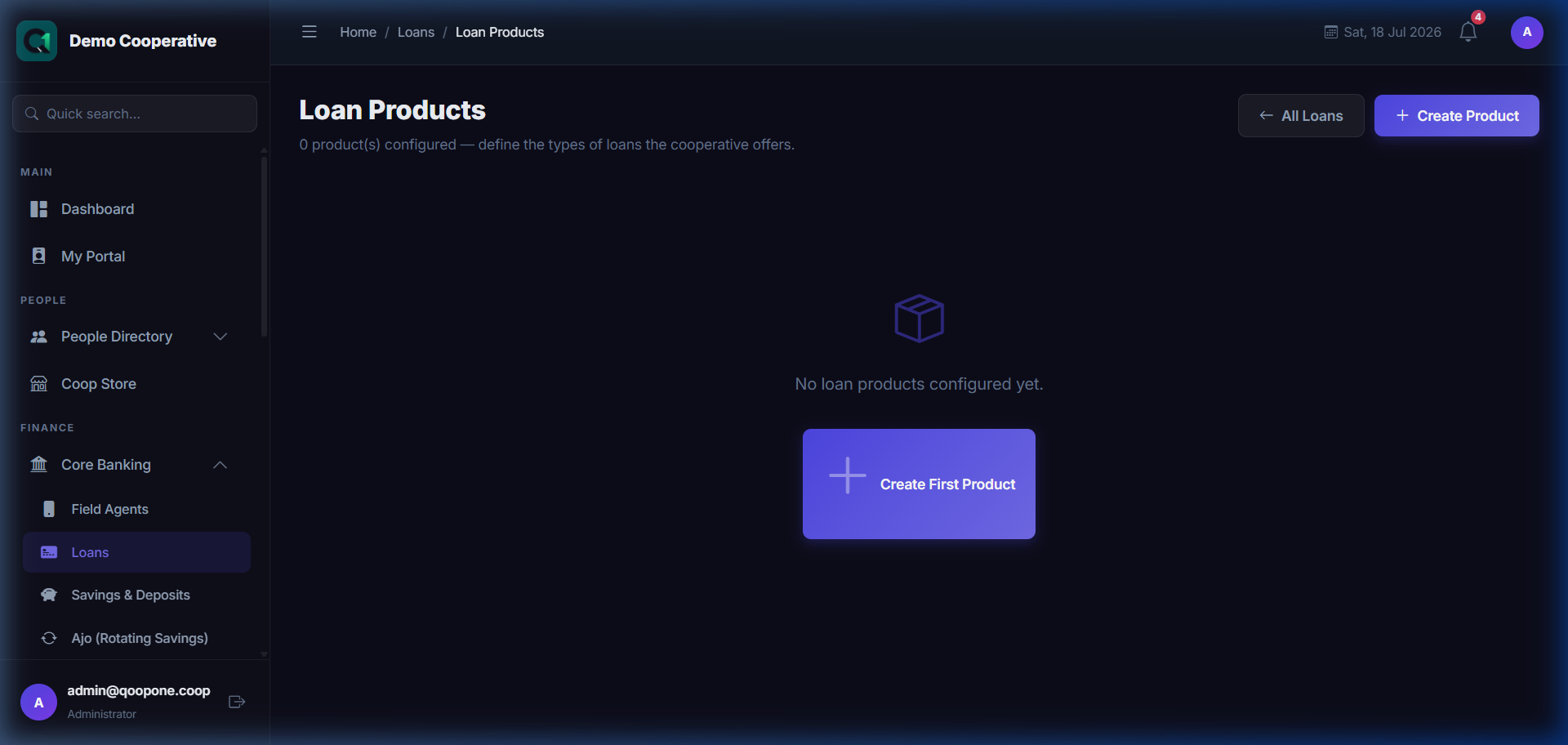
Shows all configured loan products.
| Column | Description |
|---|---|
| Name | Product name (e.g. Emergency Loan) |
| Min / Max Amount | Allowed borrowing range |
| Interest Rate (Member) | Rate offered to members |
| Interest Rate (Customer) | Rate offered to non-member customers |
| Min / Max Term | Allowed repayment duration in months |
| Interest Method | Flat Rate or Reducing Balance |
Tips
EMI Calculator
The monthly EMI updates in real time as you enter the loan amount, rate, and term. Use it to help members choose a comfortable repayment amount.
Product Rules
Each loan product has minimum and maximum loan amounts and terms. The system will show an error if you enter a value outside the allowed range.
Guarantors
For large loans, your cooperative's policy may require guarantors. Check with your administrator about when guarantors are mandatory.
Common Mistakes
| Mistake | How to Avoid |
|---|---|
| Entering a loan amount outside the product's limit | Read the min/max hint shown under the amount field |
| Forgetting to set the start date | The start date is required — the system cannot generate a repayment schedule without it |
| Submitting without selecting a loan product | The loan product is required |
Frequently Asked Questions
Q: Can a member have more than one active loan?
A: This depends on your cooperative's policy and the loan product settings. Some products restrict multiple concurrent loans.
Q: What is the difference between Flat Rate and Reducing Balance?
A: With Flat Rate, interest is calculated on the original loan amount for the entire term. With Reducing Balance, interest is calculated on the decreasing outstanding balance each month, making it cheaper overall.
Q: How do I record a partial repayment?
A: Open the loan details page and click Record Repayment. Enter the amount received, even if it is less than the EMI.