Login & Access
Purpose
The Login page is the entry point to QoopOne. Only authorised staff and members can sign in. Your identity determines which features and data you can access.
Who Can Access
All users of QoopOne — Administrators, Managers, Loan Officers, Tellers, Auditors, Field Agents, and Members.
How to Open This Page
Navigate to your cooperative's QoopOne web address in your browser (e.g. https://yourcoopname.qoopone.com).
Screen Overview
The login screen shows your cooperative's logo and a sign-in form. It has two layouts:
- Staff Login — for all internal staff
- Member Portal Login — for cooperative members accessing their own accounts
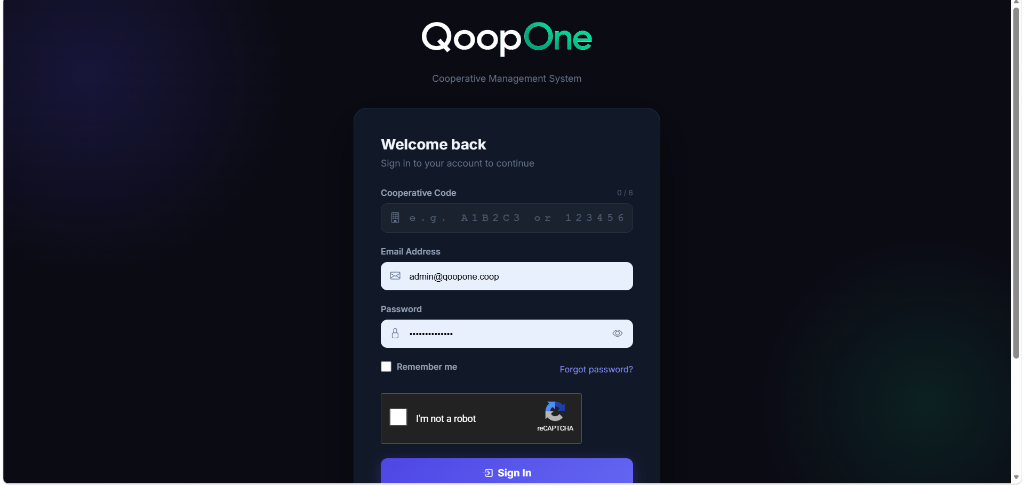
Field Guide
| Field | Required | Description | Example |
|---|---|---|---|
| Cooperative Code | Yes | A short code identifying your cooperative. Provided by your administrator. | COOP01 |
| Email Address | Yes | Your registered email address. This is your username. | adaeze@email.com |
| Password | Yes | Your secret password. Type carefully — it is case-sensitive. | (hidden) |
| Remember Me | No | Tick this box to stay logged in on this device for longer. | ✓ |
Buttons
| Button | What It Does |
|---|---|
| Sign In | Submits your login details and opens the application. |
| Forgot Password? | Opens the password reset page so you can regain access. |
Step-by-Step Guide
Logging In
- Open your browser and go to your QoopOne web address.
- Enter your Cooperative Code (e.g.
COOP01). - Enter your Email Address.
- Enter your Password.
- (Optional) Tick Remember Me if you are on a trusted device.
- Click Sign In.
- If your details are correct, you will be taken to the Dashboard.
Resetting a Forgotten Password
- On the login page, click Forgot Password?.
- Enter your Cooperative Code and Email Address.
- Click Send Reset Link.
- Check your email inbox for a password reset link.
- Click the link in the email and follow the instructions to create a new password.
Two-Factor Authentication (2FA)
If your administrator has enabled two-factor authentication:
- After entering your password, you will see a Verification Code screen.
- Open your authenticator app (e.g. Google Authenticator).
- Enter the 6-digit code shown in the app.
- Click Verify.
Authenticator App
Your administrator must set up 2FA for your account before you can use it. Contact them if you need help.
Tips
Password Tips
- Use at least 8 characters.
- Include uppercase letters, numbers, and symbols for a stronger password.
- Never share your password with anyone.
Device Security
Only tick "Remember Me" on your own personal or work device. Never tick it on a shared or public computer.
Common Mistakes
| Problem | Solution |
|---|---|
| "Invalid credentials" error | Double-check your email and password. Passwords are case-sensitive. |
| Cannot find the cooperative code | Ask your administrator. |
| Account locked | Too many failed attempts lock the account. Contact your administrator to unlock it. |
| Page not loading | Check your internet connection. Try a different browser. |
Frequently Asked Questions
Q: What if I forget my password?
A: Click Forgot Password? on the login page and follow the steps. A reset link will be sent to your email.
Q: Can I use QoopOne on my phone?
A: Yes. QoopOne is mobile-friendly. Open your phone's browser and go to the same web address.
Q: What does "Cooperative Code" mean?
A: It is a short identifier for your cooperative (e.g. FIRSTCOOP). Your administrator will tell you what yours is.
Q: How do I change my password after logging in?
A: Click your name or profile icon at the top right of the screen, then select Change Password.