Pending Withdrawals
Purpose
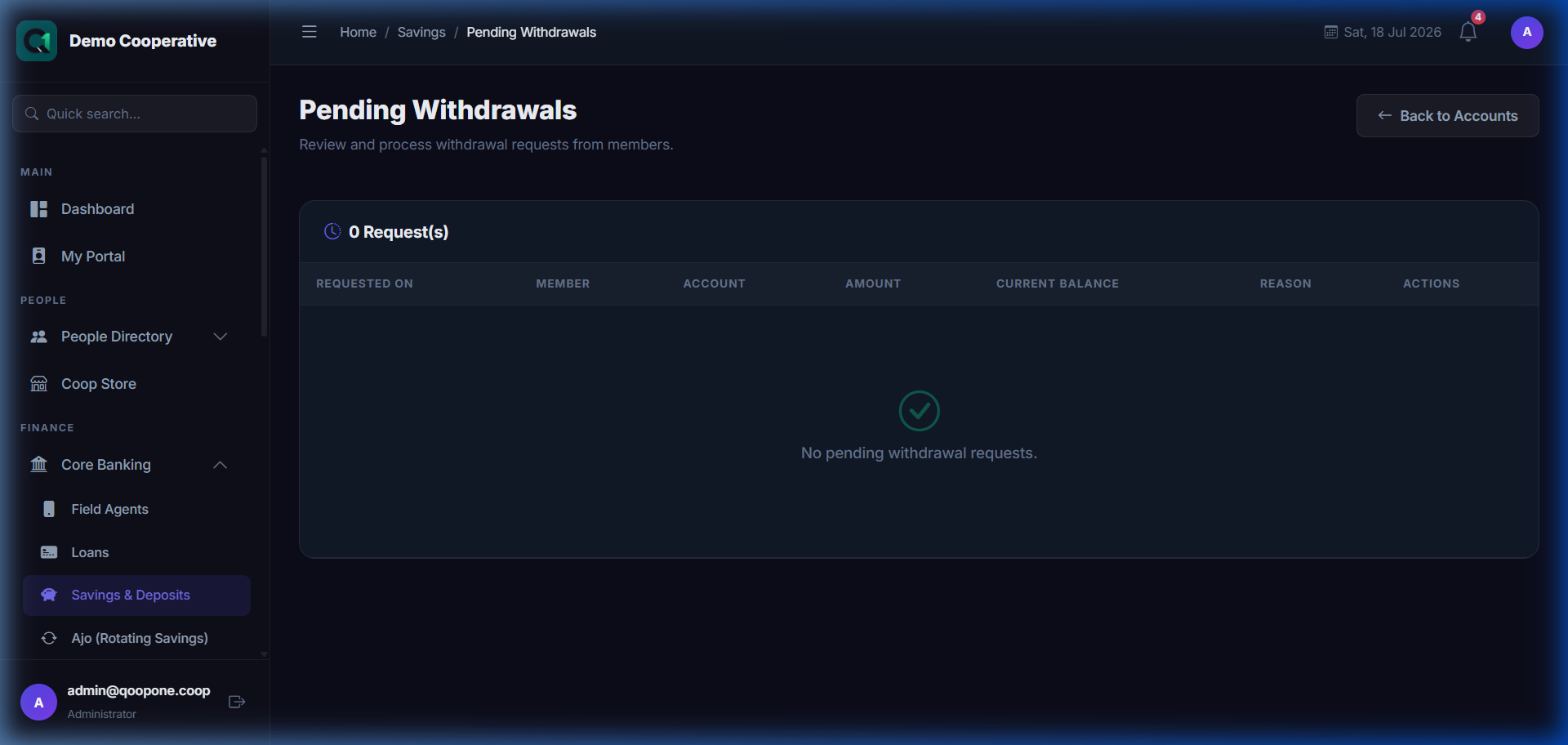
The Pending Withdrawals page shows all withdrawal requests that are waiting to be approved and processed. This is where administrators and managers review, approve, or reject member withdrawal requests from locked savings accounts (Fixed Deposits and Target Savings).
Who Can Access
- Administrator
- Manager
- Account Officer (view only)
How to Open This Page
Finance → Core Banking → Savings → Pending Withdrawals
Screen Overview
👉 HOW TO APPROVE OR REJECT A PENDING WITHDRAWAL (Vivid Guide)
- Go to Core Banking -> Savings & Deposits in the sidebar.
- Click the "Pending" button in the top navigation tabs to view all waiting withdrawal requests.
- Find the member's request and click the 👁 View or Verify option next to it.
- Click the green "Approve" button to release the funds, or the red "Reject" button if the request is not valid.
The page shows a table of all outstanding withdrawal requests with the member name, account, amount, penalty (if any), destination bank, and a link to the associated approval workflow.
Table Columns
| Column | Description |
|---|---|
| Reference | Unique reference number for the request |
| Member | Name of the member requesting withdrawal |
| Account | The savings account being withdrawn from |
| Amount | Amount the member requested to withdraw |
| Penalty | Early withdrawal penalty deducted (if any) |
| Net Payout | Amount to be paid out after penalty |
| Destination Bank | Bank where funds will be sent |
| Destination A/C No. | Member's bank account number |
| Submitted On | Date the request was submitted |
| Status | Pending, Approved, Rejected |
Approving a Withdrawal
Note
Withdrawal approvals go through the Maker-Checker Workflow. Click the workflow link on the request to approve or reject.
Step-by-Step Guide
- Go to Savings → Pending Withdrawals.
- Find the request you want to approve.
- Click the Workflow icon or button next to the request.
- Review the details:
- Member name and account
- Amount and penalty breakdown
- Net payout amount
- Destination bank details
- Add any Review Notes (optional but recommended).
- Click Approve to confirm, or Reject to decline.
When approved, the system automatically initiates a bank transfer (via Paystack) to the member's bank account.
What Happens After Approval?
flowchart LR
    A[Member submits withdrawal] --> B[Penalty deducted from balance]
    B --> C[Request enters Pending queue]
    C --> D{Manager review}
    D -->|Approved| E[Bank transfer initiated via Paystack]
    D -->|Rejected| F[Balance refunded to member account]
    E --> G[Member receives funds]
What Happens After Rejection?
If a withdrawal request is rejected:
- The amount is refunded to the member's savings balance.
- The member is notified by the system.
- The staff member who processed it can add a rejection note explaining why.
Tips
Tip
Before approving, always verify the destination bank account number is correct. Once funds are transferred, reversals can be difficult.
Warning
Never approve a withdrawal you did not initiate yourself if you are unsure of the request details. Always cross-reference with the member directly.
Frequently Asked Questions
Q: A member says their withdrawal has not been paid. What should I check?
A: First check if the withdrawal is in Pending status (not yet approved). If it is approved, check for any bank transfer errors in the system logs.
Q: Can a withdrawal be rejected after approval?
A: Once approved and the transfer is initiated, it cannot be reversed from QoopOne. Contact Paystack support if needed.
Q: How long does a transfer take after approval?
A: Bank transfers typically settle within a few minutes to 24 hours depending on the destination bank.